> ## Documentation Index
> Fetch the complete documentation index at: https://docs.poixe.com/llms.txt
> Use this file to discover all available pages before exploring further.
# OpenCode
> An open-source terminal coding agent
## Introduction
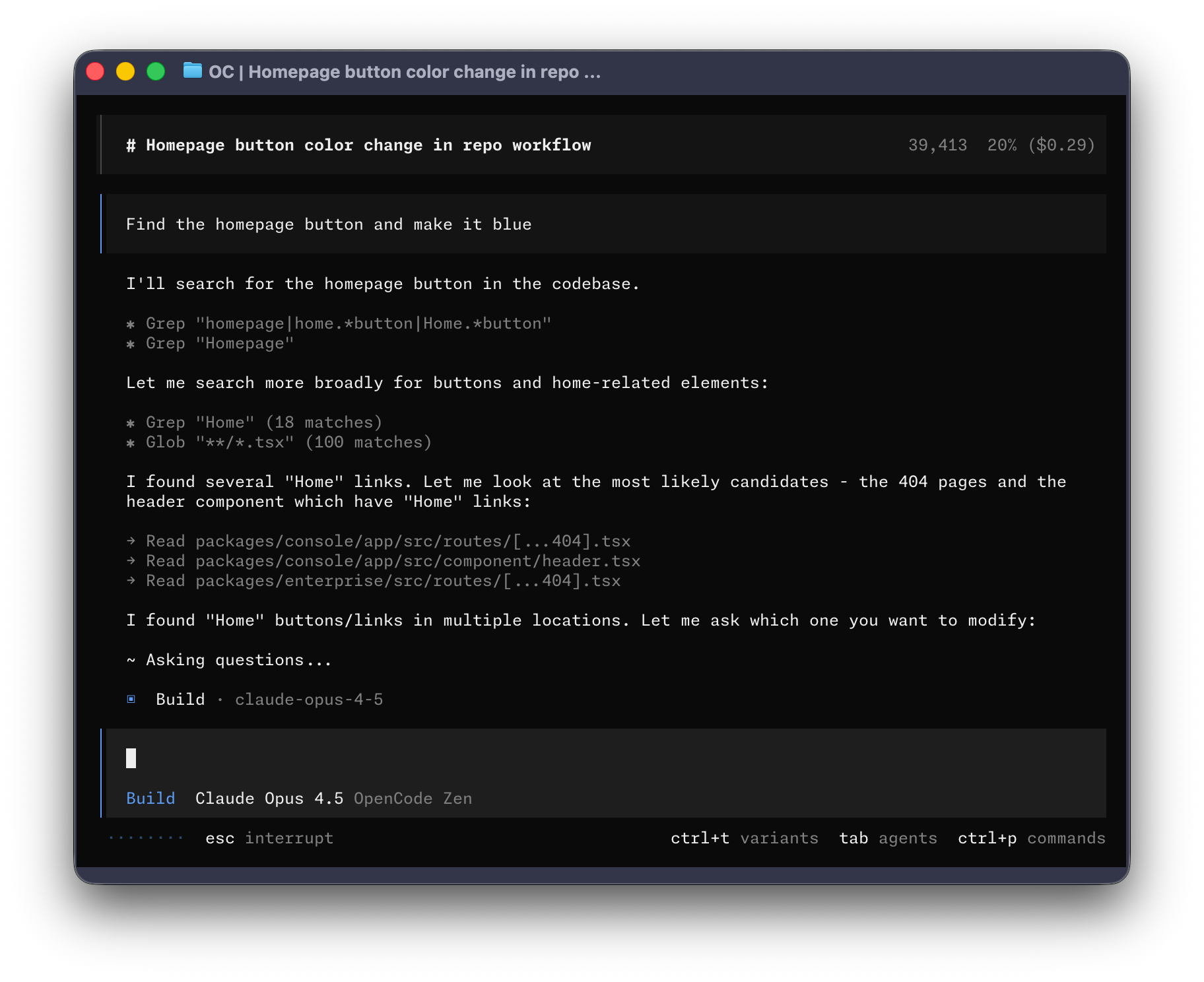
OpenCode is an open-source AI coding agent. You can use it through a terminal interface, a desktop app, or an IDE extension.
It supports multiple AI providers and models. This guide explains how to connect Poixe to OpenCode as a provider and use the Codex series models on Poixe to work on tasks in your codebase.
 opencode.json / opencode.jsonc configuration format
Source code, releases, and contribution guide
## Prerequisites
Make sure you have:
* An open terminal or command prompt
* A code project to work on
* A valid Poixe API Key ([how to create a token](/en/docs/dashboard/create-tokens))
## Install OpenCode
We recommend the official install script:
```bash theme={"theme":{"light":"min-light","dark":"min-dark"}}
curl -fsSL https://opencode.ai/install | bash
```
Or install globally with npm:
```bash theme={"theme":{"light":"min-light","dark":"min-dark"}}
npm install -g opencode-ai
```
Verify the installation:
```bash theme={"theme":{"light":"min-light","dark":"min-dark"}}
opencode --version
opencode --help
```
## Create the configuration file
OpenCode lets you configure providers, the default model, permissions, and more through `opencode.json` / `opencode.jsonc`.
The example below uses **poixe** as a custom provider and sets the default model to a **Responses protocol Codex model**.
### 1. Create the configuration file
Create `opencode.jsonc` in your OpenCode configuration directory (JSONC supports comments, which makes it better for long-term maintenance).
> The exact file path depends on the OpenCode documentation and your system. You can also place a configuration file in a project's root directory for that project only.
```bash theme={"theme":{"light":"min-light","dark":"min-dark"}}
# Configuration file
~/.config/opencode/opencode.jsonc
```
### 2. Edit the configuration file
> Key points:
>
> * `baseURL` points to Poixe: `https://api.poixe.com/v1`
> * Declare `gpt-5.2-codex` in `models` (along with any other models you want to offer in the UI)
> * The default model is usually written in `provider_key/model_key` format (for example, `poixe/gpt-5.2-codex`)
```jsonc theme={"theme":{"light":"min-light","dark":"min-dark"}}
{
"$schema": "https://opencode.ai/config.json",
// Set the default model (provider/model)
"model": "poixe/gpt-5.2-codex",
// Whether to auto-update (optional)
"autoupdate": true,
"provider": {
"poixe": {
"npm": "@ai-sdk/openai", // Corresponds to the OpenAI Responses protocol
"name": "Poixe AI",
"options": {
"baseURL": "https://api.poixe.com/v1"
},
"models": {
"gpt-5.2-codex": { "name": "GPT-5.2-Codex" },
"gpt-5.1-codex": { "name": "GPT-5.1-Codex" },
"gpt-5.1-codex-mini": { "name": "GPT-5.1-Codex mini" },
"gpt-5.1-codex-max": { "name": "GPT-5.1-Codex-Max" },
"gpt-5-codex": { "name": "GPT-5-Codex" }
}
}
}
}
```
## Configure the API Key (authentication)
OpenCode usually walks you through connecting a provider interactively and saves the credentials (the prompts may differ slightly between versions).
Recommended approach:
1. Start OpenCode:
```bash theme={"theme":{"light":"min-light","dark":"min-dark"}}
opencode
```
2. Connect the Poixe provider by entering the following in the interactive interface:
```bash theme={"theme":{"light":"min-light","dark":"min-dark"}}
# Enter the command
/connect
# Select Poixe AI (search with the keyword poixe)
# Enter your Poixe API Key
# Select a model
```
## Get started
Go to your project directory and start it:
```bash theme={"theme":{"light":"min-light","dark":"min-dark"}}
cd /path/to/your/project
opencode
```
## Permissions and tools (OpenCode built-in tools)
OpenCode has built-in tools (such as running commands, editing files, and writing files), and you can control whether they are allowed through `permission` in the configuration.
Example (allow running commands and editing):
```jsonc theme={"theme":{"light":"min-light","dark":"min-dark"}}
{
"$schema": "https://opencode.ai/config.json",
"permission": {
"bash": "allow",
"edit": "allow"
}
}
```
> Recommendation: Stay conservative by default and loosen permissions gradually as needed, especially for installing dependencies, running scripts, or making large-scale changes.
## FAQ
* Confirm that you completed OpenCode's provider connection/login flow and are using a Poixe API Key
* Confirm that `baseURL` in the configuration points to `https://api.poixe.com/v1`
* If you previously linked another provider/Key, reconnect the Poixe provider and try again
This is usually caused by permission policies:
```
1. Check `permission` (for example, whether `bash`/`edit` are allowed)
2. Confirm that you are in a writable directory (and that you have system permission for it)
3. For "dangerous actions", break them down: have it give a plan + diff first, then decide whether to execute
```
* Provide the time of the error and the key error message
* If the response includes a Poixe Request ID, include it as well
This documentation is built and hosted on [Mintlify](https://mintlify.com), a developer documentation platform.
opencode.json / opencode.jsonc configuration format
Source code, releases, and contribution guide
## Prerequisites
Make sure you have:
* An open terminal or command prompt
* A code project to work on
* A valid Poixe API Key ([how to create a token](/en/docs/dashboard/create-tokens))
## Install OpenCode
We recommend the official install script:
```bash theme={"theme":{"light":"min-light","dark":"min-dark"}}
curl -fsSL https://opencode.ai/install | bash
```
Or install globally with npm:
```bash theme={"theme":{"light":"min-light","dark":"min-dark"}}
npm install -g opencode-ai
```
Verify the installation:
```bash theme={"theme":{"light":"min-light","dark":"min-dark"}}
opencode --version
opencode --help
```
## Create the configuration file
OpenCode lets you configure providers, the default model, permissions, and more through `opencode.json` / `opencode.jsonc`.
The example below uses **poixe** as a custom provider and sets the default model to a **Responses protocol Codex model**.
### 1. Create the configuration file
Create `opencode.jsonc` in your OpenCode configuration directory (JSONC supports comments, which makes it better for long-term maintenance).
> The exact file path depends on the OpenCode documentation and your system. You can also place a configuration file in a project's root directory for that project only.
```bash theme={"theme":{"light":"min-light","dark":"min-dark"}}
# Configuration file
~/.config/opencode/opencode.jsonc
```
### 2. Edit the configuration file
> Key points:
>
> * `baseURL` points to Poixe: `https://api.poixe.com/v1`
> * Declare `gpt-5.2-codex` in `models` (along with any other models you want to offer in the UI)
> * The default model is usually written in `provider_key/model_key` format (for example, `poixe/gpt-5.2-codex`)
```jsonc theme={"theme":{"light":"min-light","dark":"min-dark"}}
{
"$schema": "https://opencode.ai/config.json",
// Set the default model (provider/model)
"model": "poixe/gpt-5.2-codex",
// Whether to auto-update (optional)
"autoupdate": true,
"provider": {
"poixe": {
"npm": "@ai-sdk/openai", // Corresponds to the OpenAI Responses protocol
"name": "Poixe AI",
"options": {
"baseURL": "https://api.poixe.com/v1"
},
"models": {
"gpt-5.2-codex": { "name": "GPT-5.2-Codex" },
"gpt-5.1-codex": { "name": "GPT-5.1-Codex" },
"gpt-5.1-codex-mini": { "name": "GPT-5.1-Codex mini" },
"gpt-5.1-codex-max": { "name": "GPT-5.1-Codex-Max" },
"gpt-5-codex": { "name": "GPT-5-Codex" }
}
}
}
}
```
## Configure the API Key (authentication)
OpenCode usually walks you through connecting a provider interactively and saves the credentials (the prompts may differ slightly between versions).
Recommended approach:
1. Start OpenCode:
```bash theme={"theme":{"light":"min-light","dark":"min-dark"}}
opencode
```
2. Connect the Poixe provider by entering the following in the interactive interface:
```bash theme={"theme":{"light":"min-light","dark":"min-dark"}}
# Enter the command
/connect
# Select Poixe AI (search with the keyword poixe)
# Enter your Poixe API Key
# Select a model
```
## Get started
Go to your project directory and start it:
```bash theme={"theme":{"light":"min-light","dark":"min-dark"}}
cd /path/to/your/project
opencode
```
## Permissions and tools (OpenCode built-in tools)
OpenCode has built-in tools (such as running commands, editing files, and writing files), and you can control whether they are allowed through `permission` in the configuration.
Example (allow running commands and editing):
```jsonc theme={"theme":{"light":"min-light","dark":"min-dark"}}
{
"$schema": "https://opencode.ai/config.json",
"permission": {
"bash": "allow",
"edit": "allow"
}
}
```
> Recommendation: Stay conservative by default and loosen permissions gradually as needed, especially for installing dependencies, running scripts, or making large-scale changes.
## FAQ
* Confirm that you completed OpenCode's provider connection/login flow and are using a Poixe API Key
* Confirm that `baseURL` in the configuration points to `https://api.poixe.com/v1`
* If you previously linked another provider/Key, reconnect the Poixe provider and try again
This is usually caused by permission policies:
```
1. Check `permission` (for example, whether `bash`/`edit` are allowed)
2. Confirm that you are in a writable directory (and that you have system permission for it)
3. For "dangerous actions", break them down: have it give a plan + diff first, then decide whether to execute
```
* Provide the time of the error and the key error message
* If the response includes a Poixe Request ID, include it as well
This documentation is built and hosted on [Mintlify](https://mintlify.com), a developer documentation platform.