> ## Documentation Index
> Fetch the complete documentation index at: https://docs.poixe.com/llms.txt
> Use this file to discover all available pages before exploring further.
# Codex CLI
> OpenAI's terminal coding agent
## Introduction
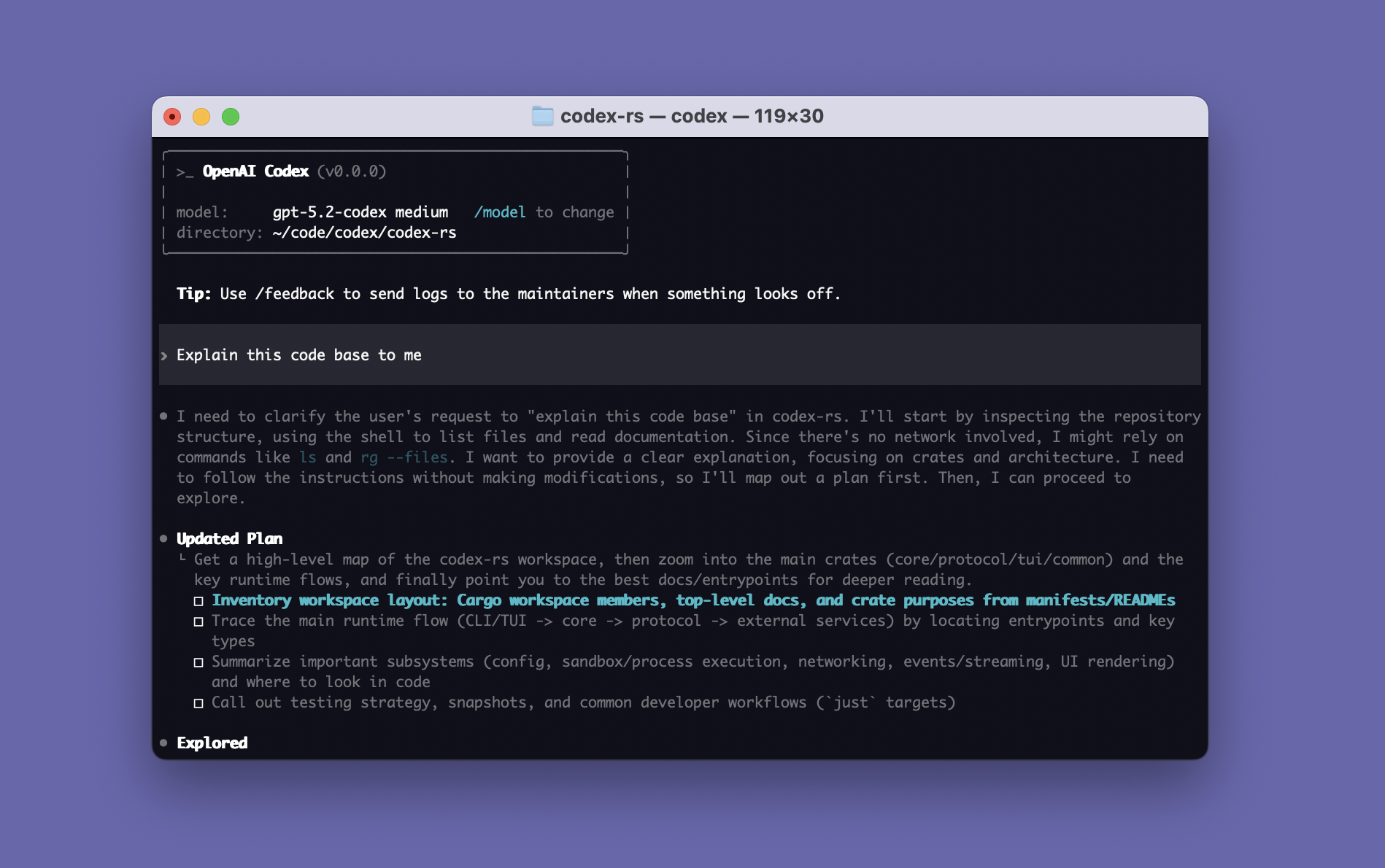
Codex CLI is OpenAI's local coding agent that you can run in your terminal. It can read code, modify files, and execute code on your machine in the directory you choose. It is open source and built in Rust for speed and efficiency.
 Installation, usage, commands, and configuration reference
Source code, release binaries, and contribution guide
## Prerequisites
Make sure you have:
* An open terminal or command prompt
* A code project to work on
* An API token that supports the [OpenAI Responses protocol](/en/api-reference/text-api/openai-responses/overview) ([how to create a token](/en/docs/dashboard/create-tokens))
Make sure your terminal environment supports:
```bash theme={"theme":{"light":"min-light","dark":"min-dark"}}
# node.js
node -v
# git
git --version
```
## Install Codex CLI
Run the following command in your terminal to install globally:
```bash theme={"theme":{"light":"min-light","dark":"min-dark"}}
npm install -g @openai/codex
```
Verify the installation:
```bash theme={"theme":{"light":"min-light","dark":"min-dark"}}
# Check the version
codex --version
# View help
codex --help
```
## Configure Codex CLI
Create the Codex configuration file as follows:
```bash theme={"theme":{"light":"min-light","dark":"min-dark"}}
# Edit the configuration file:
nano ~/.codex/config.toml
# If the directory does not exist, create it first:
mkdir -p ~/.codex
```
```bash theme={"theme":{"light":"min-light","dark":"min-dark"}}
# Create the configuration file at the following path:
C:\Users\YourUsername\.codex\config.toml
```
Add the following to `config.toml`:
```toml theme={"theme":{"light":"min-light","dark":"min-dark"}}
model_provider = "codex"
model = "gpt-5.2-codex" # Choose a model
model_reasoning_effort = "high"
disable_response_storage = true
[model_providers.codex]
name = "codex"
base_url = "https://api.poixe.com/v1" # Poixe API base URL
wire_api = "responses"
env_key = "K_CODEX" # Do not enter your key here; set it in an environment variable
```
**Model selection tips (Codex series):**
Installation, usage, commands, and configuration reference
Source code, release binaries, and contribution guide
## Prerequisites
Make sure you have:
* An open terminal or command prompt
* A code project to work on
* An API token that supports the [OpenAI Responses protocol](/en/api-reference/text-api/openai-responses/overview) ([how to create a token](/en/docs/dashboard/create-tokens))
Make sure your terminal environment supports:
```bash theme={"theme":{"light":"min-light","dark":"min-dark"}}
# node.js
node -v
# git
git --version
```
## Install Codex CLI
Run the following command in your terminal to install globally:
```bash theme={"theme":{"light":"min-light","dark":"min-dark"}}
npm install -g @openai/codex
```
Verify the installation:
```bash theme={"theme":{"light":"min-light","dark":"min-dark"}}
# Check the version
codex --version
# View help
codex --help
```
## Configure Codex CLI
Create the Codex configuration file as follows:
```bash theme={"theme":{"light":"min-light","dark":"min-dark"}}
# Edit the configuration file:
nano ~/.codex/config.toml
# If the directory does not exist, create it first:
mkdir -p ~/.codex
```
```bash theme={"theme":{"light":"min-light","dark":"min-dark"}}
# Create the configuration file at the following path:
C:\Users\YourUsername\.codex\config.toml
```
Add the following to `config.toml`:
```toml theme={"theme":{"light":"min-light","dark":"min-dark"}}
model_provider = "codex"
model = "gpt-5.2-codex" # Choose a model
model_reasoning_effort = "high"
disable_response_storage = true
[model_providers.codex]
name = "codex"
base_url = "https://api.poixe.com/v1" # Poixe API base URL
wire_api = "responses"
env_key = "K_CODEX" # Do not enter your key here; set it in an environment variable
```
**Model selection tips (Codex series):**
* `gpt-5.2-codex`: The default first choice and the most capable overall, suited to most real-world engineering tasks (refactoring, troubleshooting, cross-file changes, multi-step implementation).
* `gpt-5.1-codex`: A stable general-purpose choice (between 5.2 and mini), suited to everyday development and as a team default.
* `gpt-5.1-codex-mini`: Best for cost-effectiveness; suited to quick fixes, small changes, scaffolding, and simple problem diagnosis.
* `gpt-5.1-codex-max`: Best for long or deep tasks; suited to large-scale refactoring, migrations, complex debugging, and long-running agent loops.
* `gpt-5-codex`: A more "conservative/compatible" choice, suited to cases where you need to match older behavior or have specific cost/stability requirements.
## Set environment variables
Set your API Key as an environment variable:
```bash theme={"theme":{"light":"min-light","dark":"min-dark"}}
# macOS (zsh)
echo 'export K_CODEX="$POIXE_API_KEY"' >> ~/.zshrc
source ~/.zshrc
# Linux (bash)
echo 'export K_CODEX="$POIXE_API_KEY"' >> ~/.bashrc
source ~/.bashrc
```
After configuration, we recommend restarting your terminal to make sure the environment variables take effect.
## Get started
Go to your project directory and start Codex CLI:
```bash theme={"theme":{"light":"min-light","dark":"min-dark"}}
# Go to your project directory
cd /path/to/your/project
# Start Codex CLI
codex
```
## Usage tips
### 1. Have it "understand" first, then "act"
We recommend splitting a complex request into two steps:
1. **Understand/explore**: Have it first survey the architecture, entry points, dependencies, and key paths
2. **Implement/verify**: Then have it change the code, run tests, and show the diff
For example:
```bash theme={"theme":{"light":"min-light","dark":"min-dark"}}
codex "First scan the project structure, find where the auth and routing entry points are, and give me a plan for how you intend to change them (do not modify the code yet)"
```
Once you are happy with the plan, continue:
```bash theme={"theme":{"light":"min-light","dark":"min-dark"}}
codex "Implement the plan above; keep changes as small as possible; finally run the tests and show /diff"
```
In interactive mode, Codex tends to explain its plan before executing, and lets you approve or reject at key steps.
### 2. Use `/diff` + `/review` often: review each round of changes like a PR
* `/diff`: View working tree changes at any time (including files not tracked by Git), so you always know what changed.
* `/review`: Start a dedicated reviewer that reads the diff you choose and gives prioritized suggestions, and **does not touch your working tree**.
### 3. Use `/permissions` to switch between "cautious" and "hands-off" at any time
Codex's Approval modes are Auto, Read-only, and Full Access, and you can adjust them dynamically during a session with `/permissions`.
### 4. Remember to `/compact` in long conversations
After many rounds of conversation (especially cross-file refactoring or troubleshooting), the context keeps growing.
`/compact` condenses the currently visible conversation into a summary, reducing token pressure while keeping key conclusions.
### 5. Put "long-term repository rules" in `AGENTS.md`
`/init` generates an `AGENTS.md` scaffold in the current directory, where you can write "this repository's long-term preferences, conventions, and off-limits areas".
Common examples:
* In this project, always communicate with the user in English.
* Which test command to use by default
* Code style / lint / commit conventions
* Which directories/files must not be modified
* Output format (must provide a diff, must provide migration steps, etc.)
## Basic commands
### 1. Launch and run
```bash theme={"theme":{"light":"min-light","dark":"min-dark"}}
# Start the interactive TUI after entering the project directory
codex
# Start with a task directly (still interactive)
codex "fix failing tests and explain the root cause"
```
On first run you will be prompted to log in: you can authorize with a ChatGPT account or use an API key.
If you use API key mode, make sure the `K_CODEX` environment variable is set, and that `config.toml` has `env_key = "K_CODEX"` and `base_url = "https://api.poixe.com/v1"`.
### 2. Common CLI flags (available at launch)
```bash theme={"theme":{"light":"min-light","dark":"min-dark"}}
# Specify a model
codex --model gpt-5-codex
# Pass an image as context (for example, a screenshot or design mockup)
codex -i screenshot.png "Explain this UI bug"
# Allow write access to extra directories (useful for multi-repo/monorepo scenarios)
codex --add-dir /path/to/another/dir "refactor shared lib"
# Control the approval policy for command execution (more cautious or more hands-off)
codex --ask-for-approval on-request
# Control the sandbox policy (read-only / workspace-write / danger-full-access)
codex --sandbox workspace-write
# Make web search use live (the default is cached)
codex --search "look up the latest X and summarize"
```
These flags are fully documented in the official [Command Line Options](https://developers.openai.com/codex/cli/reference).
### 3. Resume a session
```bash theme={"theme":{"light":"min-light","dark":"min-dark"}}
# Open the picker of recent sessions
codex resume
# Resume the most recent session in the current directory
codex resume --last
# Allow searching for sessions across directories
codex resume --all
# Resume a specific SESSION_ID
codex resume
```
Codex saves session records locally (for example in `~/.codex/sessions/`), so you can pick up where you left off.
### 4. Non-interactive mode (CI/scripts): `codex exec`
Suited to automation: have it run checks, output results to stdout or JSONL, and write to files when needed.
```bash theme={"theme":{"light":"min-light","dark":"min-dark"}}
# Run as a one-off script
codex exec "run lint and propose fixes"
# Output JSONL (easy for machines to parse)
codex exec --json "summarize repo and output risks"
# Write the final reply to a file
codex exec -o result.txt "generate a release checklist"
# Resume the last exec session and keep going
codex exec resume --last "continue implementing the plan"
```
The parameters of `codex exec` (such as `--json`, `--output-last-message`, `--output-schema`, and `--yolo`) are described in detail in the official documentation.
## In-session slash commands
Typing `/` in an interactive session pops up a searchable list of commands.
Here are the ones you will use most:
| Command | Purpose | Typical use |
| - | - | - |
| `/model` | Switch models (some models also support adjusting reasoning effort) | "Switch to a stronger model, then refactor" |
| `/permissions` | Switch the approval/permission mode | "Start with Read-only to review the plan, then Auto to execute" |
| `/status` | View current session configuration, token usage, writable directories, etc. | "Figure out why a directory can't be written" |
| `/diff` | View the Git diff (including untracked files) | "Check it after every round of changes" |
| `/review` | Run a local code review with an independent reviewer | "Scan for risks before committing" |
| `/compact` | Compress a long conversation into a summary | "The conversation is too long; compress it first" |
| `/init` | Generate an `AGENTS.md` scaffold | "Lock in the repository rules" |
| `/mention` | Attach specific files/paths to the conversation context | "Point it at a specific directory/file" |
| `/resume` / `/new` / `/fork` | Resume / start / fork a session | "Keep the current line of thought while trying another approach" |
| `/logout` / `/quit` | Log out / quit | |
The table above corresponds to the official [Slash Commands](https://developers.openai.com/codex/cli/slash-commands) documentation.
## Notes
### 1. Don't set the permission mode too wide (especially Full Access)
* **Auto (default)**: Reading, writing, and executing inside the directory is smooth, but it asks you again for anything outside the directory or involving the network
* **Read-only**: Advisory only; it needs your approval before changing code or running commands
* **Full Access**: Spans the whole machine and includes network access; use it sparingly, and only for repositories/tasks you trust completely
The behavior of these modes is defined in the official [Features](https://developers.openai.com/codex/cli/features) documentation.
### 2. Web search is cached by default, which does not mean "live web"
Codex's web search is enabled by default, but it prefers an **OpenAI-maintained cached index (cached)** over fetching live pages; you can also enable live search with a flag.
Even so, treat web results as "untrusted input" to guard against prompt injection.
### 3. Windows support is experimental
According to the official documentation, Codex CLI is more mature on macOS / Linux, and Windows support is still experimental; using it in a WSL workspace is recommended.
### 4. Use it inside a Git repository whenever possible
Many capabilities (such as `/diff`, review, and change tracking) depend on Git.
If you run it in a non-Git directory, you can use `--skip-git-repo-check` when needed (mainly in `codex exec` scenarios).
### 5. "Behavior differences" under the Poixe gateway
Poixe is a relay layer and makes certain engineering trade-offs in stability, risk control, billing, and tool capabilities. If some capability is unavailable or behaves differently, first consult the relevant sections of Poixe's [compatibility and differences](/en/api-reference/introduction/differences/overview) documentation.
**Important:**
Poixe filters parameters related to `reasoning.encrypted_content` passed to the OpenAI Responses API, to avoid errors caused by encrypted reasoning fragments not being session credentials that work across organizations or Keys.
For details, see Poixe's [Encrypted reasoning content filtering](/en/api-reference/introduction/differences/reasoning-encrypted_content) section.
## FAQ
The first run guides you through login (ChatGPT OAuth / API key). If you use API key mode, confirm that:
* The `K_CODEX` environment variable is set
* `env_key = "K_CODEX"` is configured correctly in `config.toml`
This is usually caused by permissions or sandbox policy. Check the following in order:
1. Whether `/permissions` is currently set to Read-only
2. Whether you need to add the directory to the writable scope (`--add-dir` or configure writable roots)
3. Whether the sandbox policy is restrictive (for example, `--sandbox read-only` blocks writing/executing)
This is by design: `/review` starts an "independent reviewer" that only reads the diff and outputs suggestions, and does not modify the working tree.
You decide whether to adopt the suggestions and make the changes manually, or have Codex apply them as a regular task.
Use `codex exec`.
* For machine-readable output: add `--json`
* To write the final result to a file: use `--output-last-message/-o`
* To continue a run: use `codex exec resume ...`
Add `--search` at launch to switch web\_search from the default cached to live.
Per the official documentation: `--search` sets `web_search="live"`.
This documentation is built and hosted on [Mintlify](https://mintlify.com), a developer documentation platform.