> ## Documentation Index
> Fetch the complete documentation index at: https://docs.poixe.com/llms.txt
> Use this file to discover all available pages before exploring further.
# Claude Code
> Anthropic's terminal/IDE coding agent that understands context in your local codebase, edits files, runs commands, and helps you complete development tasks
## Introduction
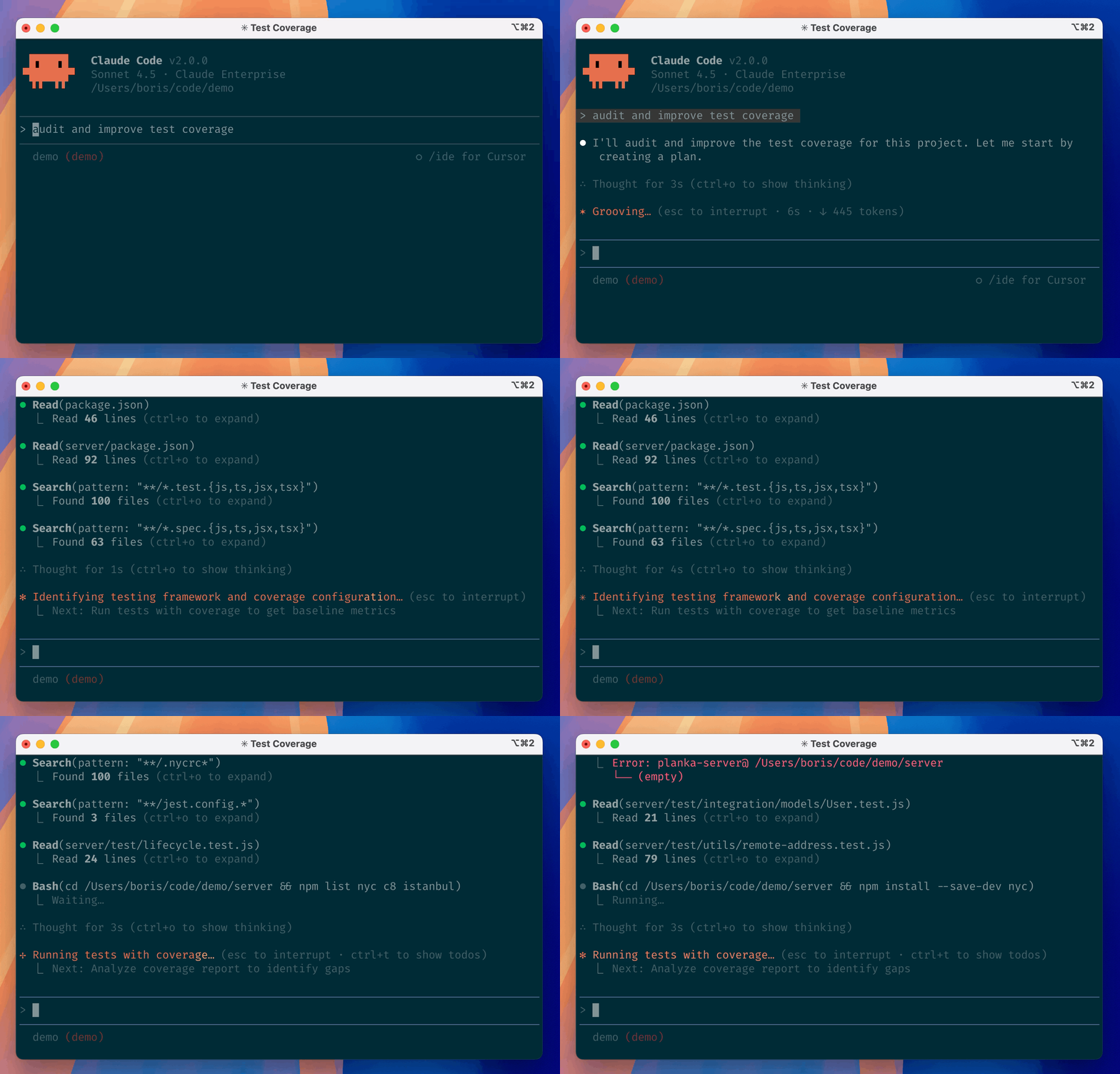
Claude Code is an agentic coding tool that runs in your terminal. It understands your codebase and helps you code faster through natural language commands: it can handle routine tasks, explain complex code, and manage Git workflows.
This section gets you up and running with AI-powered coding assistance in a few minutes. When you finish, you will know how to use Claude Code for common development tasks.
 Installation, usage, commands, and configuration reference
Source code, release binaries, and contribution guide
## Prerequisites
Make sure you have:
* An open terminal or command prompt
* A code project to work on
* An API token that supports the [Anthropic Messages protocol](/en/api-reference/text-api/anthropic-messages/overview) ([how to create a token](/en/docs/dashboard/create-tokens))
Make sure your terminal environment supports:
```bash theme={"theme":{"light":"min-light","dark":"min-dark"}}
# node.js
node -v
# git
git --version
```
Configure environment variables:
```bash theme={"theme":{"light":"min-light","dark":"min-dark"}}
# manual setup for temporary use
export ANTHROPIC_BASE_URL=https://api.poixe.com
export ANTHROPIC_API_KEY=$POIXE_API_KEY
export ANTHROPIC_MODEL=claude-3-5-haiku-20241022
# add to shell profile for persistent use (add to ~/.bashrc, ~/.zshrc, etc.)
echo 'export ANTHROPIC_BASE_URL="https://api.poixe.com"' >> ~/.bashrc
echo 'export ANTHROPIC_API_KEY="$POIXE_API_KEY"' >> ~/.bashrc
echo 'export ANTHROPIC_MODEL="claude-3-5-haiku-20241022"' >> ~/.bashrc
```
```bash theme={"theme":{"light":"min-light","dark":"min-dark"}}
setx ANTHROPIC_BASE_URL "https://api.poixe.com"
setx ANTHROPIC_API_KEY "$POIXE_API_KEY"
setx ANTHROPIC_MODEL "claude-3-5-haiku-20241022"
```
## Install Claude Code
To install Claude Code, use one of the following methods:
**macOS, Linux, WSL:**
```bash theme={"theme":{"light":"min-light","dark":"min-dark"}}
curl -fsSL https://claude.ai/install.sh | bash
```
**Windows PowerShell:**
```powershell theme={"theme":{"light":"min-light","dark":"min-dark"}}
irm https://claude.ai/install.ps1 | iex
```
**Windows CMD:**
```batch theme={"theme":{"light":"min-light","dark":"min-dark"}}
curl -fsSL https://claude.ai/install.cmd -o install.cmd && install.cmd && del install.cmd
```
```sh theme={"theme":{"light":"min-light","dark":"min-dark"}}
brew install --cask claude-code
```
```powershell theme={"theme":{"light":"min-light","dark":"min-dark"}}
winget install Anthropic.ClaudeCode
```
```bash theme={"theme":{"light":"min-light","dark":"min-dark"}}
# Use this method only if you can’t use the native installer.
# Avoid running it with sudo.
npm install -g @anthropic-ai/claude-code
```
## Verify the installation
After installation, run the following command to verify that it succeeded:
```bash theme={"theme":{"light":"min-light","dark":"min-dark"}}
claude --version
```
## Start your first session
Open your terminal in any project directory and start Claude Code:
```bash theme={"theme":{"light":"min-light","dark":"min-dark"}}
cd /path/to/your/project
claude
```
You will see the Claude Code welcome screen with your session information, recent conversations, and the latest updates. Type `/help` to see available commands, or type `/resume` to continue a previous conversation.
## Ask your first question
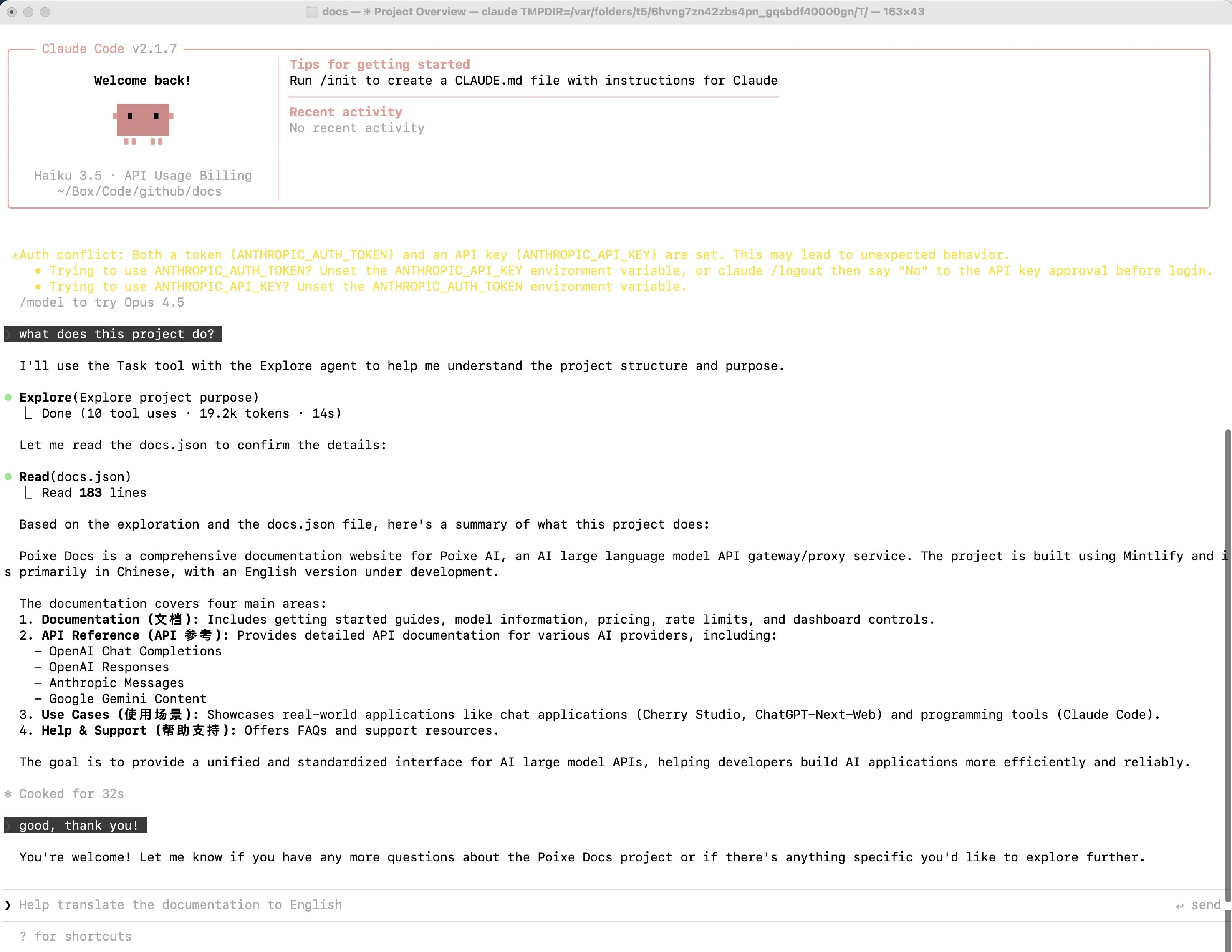
Let's start by getting to know your codebase. Try one of the following commands:
```bash theme={"theme":{"light":"min-light","dark":"min-dark"}}
> what does this project do?
```
Installation, usage, commands, and configuration reference
Source code, release binaries, and contribution guide
## Prerequisites
Make sure you have:
* An open terminal or command prompt
* A code project to work on
* An API token that supports the [Anthropic Messages protocol](/en/api-reference/text-api/anthropic-messages/overview) ([how to create a token](/en/docs/dashboard/create-tokens))
Make sure your terminal environment supports:
```bash theme={"theme":{"light":"min-light","dark":"min-dark"}}
# node.js
node -v
# git
git --version
```
Configure environment variables:
```bash theme={"theme":{"light":"min-light","dark":"min-dark"}}
# manual setup for temporary use
export ANTHROPIC_BASE_URL=https://api.poixe.com
export ANTHROPIC_API_KEY=$POIXE_API_KEY
export ANTHROPIC_MODEL=claude-3-5-haiku-20241022
# add to shell profile for persistent use (add to ~/.bashrc, ~/.zshrc, etc.)
echo 'export ANTHROPIC_BASE_URL="https://api.poixe.com"' >> ~/.bashrc
echo 'export ANTHROPIC_API_KEY="$POIXE_API_KEY"' >> ~/.bashrc
echo 'export ANTHROPIC_MODEL="claude-3-5-haiku-20241022"' >> ~/.bashrc
```
```bash theme={"theme":{"light":"min-light","dark":"min-dark"}}
setx ANTHROPIC_BASE_URL "https://api.poixe.com"
setx ANTHROPIC_API_KEY "$POIXE_API_KEY"
setx ANTHROPIC_MODEL "claude-3-5-haiku-20241022"
```
## Install Claude Code
To install Claude Code, use one of the following methods:
**macOS, Linux, WSL:**
```bash theme={"theme":{"light":"min-light","dark":"min-dark"}}
curl -fsSL https://claude.ai/install.sh | bash
```
**Windows PowerShell:**
```powershell theme={"theme":{"light":"min-light","dark":"min-dark"}}
irm https://claude.ai/install.ps1 | iex
```
**Windows CMD:**
```batch theme={"theme":{"light":"min-light","dark":"min-dark"}}
curl -fsSL https://claude.ai/install.cmd -o install.cmd && install.cmd && del install.cmd
```
```sh theme={"theme":{"light":"min-light","dark":"min-dark"}}
brew install --cask claude-code
```
```powershell theme={"theme":{"light":"min-light","dark":"min-dark"}}
winget install Anthropic.ClaudeCode
```
```bash theme={"theme":{"light":"min-light","dark":"min-dark"}}
# Use this method only if you can’t use the native installer.
# Avoid running it with sudo.
npm install -g @anthropic-ai/claude-code
```
## Verify the installation
After installation, run the following command to verify that it succeeded:
```bash theme={"theme":{"light":"min-light","dark":"min-dark"}}
claude --version
```
## Start your first session
Open your terminal in any project directory and start Claude Code:
```bash theme={"theme":{"light":"min-light","dark":"min-dark"}}
cd /path/to/your/project
claude
```
You will see the Claude Code welcome screen with your session information, recent conversations, and the latest updates. Type `/help` to see available commands, or type `/resume` to continue a previous conversation.
## Ask your first question
Let's start by getting to know your codebase. Try one of the following commands:
```bash theme={"theme":{"light":"min-light","dark":"min-dark"}}
> what does this project do?
```
 ## Basic commands
Here are the most important commands for everyday use:
| Command | What it does | Example |
| - | - | - |
| `claude` | Start interactive mode | `claude` |
| `claude "task"` | Run a one-off task | `claude "fix the build error"` |
| `claude -p "query"` | Run a one-off query, then exit | `claude -p "explain this function"` |
| `claude -c` | Continue the most recent conversation in the current directory | `claude -c` |
| `claude -r` | Resume a previous conversation | `claude -r` |
| `claude commit` | Create a Git commit | `claude commit` |
| `/clear` | Clear conversation history | `> /clear` |
| `/help` | Show available commands | `> /help` |
| `exit` or Ctrl+C | Exit Claude Code | `> exit` |
For the full list of commands, see the [CLI reference](https://code.claude.com/docs/zh-CN/cli-reference).
## Pro tips for beginners
Instead of: "fix the bug"
Try: "fix the login bug where users see a blank screen after entering wrong credentials"
Break complex tasks into steps:
```
> 1. create a new database table for user profiles
```
```
> 2. create an API endpoint to get and update user profiles
```
```
> 3. build a webpage that allows users to see and edit their information
```
Before making changes, let Claude understand your code:
```
> analyze the database schema
```
```
> build a dashboard showing products that are most frequently returned by our UK customers
```
* Press `?` to see all available keyboard shortcuts
* Use Tab for command completion
* Press ↑ to see command history
* Type `/` to see all slash commands
## FAQ
This indicates that Claude Code did not detect the environment variables. Check the following:
* ANTHROPIC\_API\_KEY and ANTHROPIC\_BASE\_URL are set correctly
* The environment variable values are correct (tokens start with sk-)
* If you used a persistent configuration, you restarted your terminal
Claude Code checks network status by connecting to Google. Seeing "offline" does not affect normal use; it only means Google could not be reached.
Claude Code needs to call the Claude service for a safety check before accessing a web page. You need to:
* Maintain a stable international internet connection
* Use a global proxy if necessary
If you run into an API error:
* Confirm that ANTHROPIC\_API\_KEY and ANTHROPIC\_BASE\_URL are set correctly
* Check your network connection and make sure you can reach the API endpoint
* Read the error message and refer to [Error handling](/en/api-reference/introduction/errors/overview) to troubleshoot
* If needed, [contact the team](/en/help/introduction/overview) for help
In interactive mode, type `exit` or press Ctrl+C twice to exit Claude Code.
One command does it: `claude update`
## Troubleshooting common errors
### How do I fix the `Extra inputs are not permitted` error?
While using Claude Code, you may run into the following error:
## Basic commands
Here are the most important commands for everyday use:
| Command | What it does | Example |
| - | - | - |
| `claude` | Start interactive mode | `claude` |
| `claude "task"` | Run a one-off task | `claude "fix the build error"` |
| `claude -p "query"` | Run a one-off query, then exit | `claude -p "explain this function"` |
| `claude -c` | Continue the most recent conversation in the current directory | `claude -c` |
| `claude -r` | Resume a previous conversation | `claude -r` |
| `claude commit` | Create a Git commit | `claude commit` |
| `/clear` | Clear conversation history | `> /clear` |
| `/help` | Show available commands | `> /help` |
| `exit` or Ctrl+C | Exit Claude Code | `> exit` |
For the full list of commands, see the [CLI reference](https://code.claude.com/docs/zh-CN/cli-reference).
## Pro tips for beginners
Instead of: "fix the bug"
Try: "fix the login bug where users see a blank screen after entering wrong credentials"
Break complex tasks into steps:
```
> 1. create a new database table for user profiles
```
```
> 2. create an API endpoint to get and update user profiles
```
```
> 3. build a webpage that allows users to see and edit their information
```
Before making changes, let Claude understand your code:
```
> analyze the database schema
```
```
> build a dashboard showing products that are most frequently returned by our UK customers
```
* Press `?` to see all available keyboard shortcuts
* Use Tab for command completion
* Press ↑ to see command history
* Type `/` to see all slash commands
## FAQ
This indicates that Claude Code did not detect the environment variables. Check the following:
* ANTHROPIC\_API\_KEY and ANTHROPIC\_BASE\_URL are set correctly
* The environment variable values are correct (tokens start with sk-)
* If you used a persistent configuration, you restarted your terminal
Claude Code checks network status by connecting to Google. Seeing "offline" does not affect normal use; it only means Google could not be reached.
Claude Code needs to call the Claude service for a safety check before accessing a web page. You need to:
* Maintain a stable international internet connection
* Use a global proxy if necessary
If you run into an API error:
* Confirm that ANTHROPIC\_API\_KEY and ANTHROPIC\_BASE\_URL are set correctly
* Check your network connection and make sure you can reach the API endpoint
* Read the error message and refer to [Error handling](/en/api-reference/introduction/errors/overview) to troubleshoot
* If needed, [contact the team](/en/help/introduction/overview) for help
In interactive mode, type `exit` or press Ctrl+C twice to exit Claude Code.
One command does it: `claude update`
## Troubleshooting common errors
### How do I fix the `Extra inputs are not permitted` error?
While using Claude Code, you may run into the following error:
 The error is an API 400: the server returns `context_management: Extra inputs are not permitted`. Many users report that version 2.1.20 works, but starting with 2.1.22/2.1.23 it fails immediately (any input triggers a 400).
**What causes this 400?**
Essentially, the client sent fields (or beta/experimental fields) that the server does not recognize or allow, which causes schema validation to fail.
Newer versions of Claude Code include certain context management / beta-related input fields (or the corresponding headers / schema) in requests.
But the "backend" you are connected to (commonly an enterprise gateway/proxy, Bedrock/Vertex/Gateway, some relay services, or even an Anthropic API that has been rewritten by a proxy) does not support these fields yet, so it rejects the request under strict schema validation: `Extra inputs are not permitted`.
> Related GitHub issue discussion: [https://github.com/anthropics/claude-code/issues/21612](https://github.com/anthropics/claude-code/issues/21612)
**Solution:**
The official changelog explicitly documents a related fix:
In 2.1.27, it mentions "Fixed context management validation error for gateway users", and notes that setting `CLAUDE_CODE_DISABLE_EXPERIMENTAL_BETAS=1` avoids the error.
> Related changelog entry: [https://github.com/anthropics/claude-code/blob/main/CHANGELOG.md#2127](https://github.com/anthropics/claude-code/blob/main/CHANGELOG.md#2127)
Recommendations:
* 1. Upgrade to version 2.1.27 or later (if you haven't already)
* 2. Set the environment variable `CLAUDE_CODE_DISABLE_EXPERIMENTAL_BETAS=1` to disable experimental beta features
This documentation is built and hosted on [Mintlify](https://mintlify.com), a developer documentation platform.
The error is an API 400: the server returns `context_management: Extra inputs are not permitted`. Many users report that version 2.1.20 works, but starting with 2.1.22/2.1.23 it fails immediately (any input triggers a 400).
**What causes this 400?**
Essentially, the client sent fields (or beta/experimental fields) that the server does not recognize or allow, which causes schema validation to fail.
Newer versions of Claude Code include certain context management / beta-related input fields (or the corresponding headers / schema) in requests.
But the "backend" you are connected to (commonly an enterprise gateway/proxy, Bedrock/Vertex/Gateway, some relay services, or even an Anthropic API that has been rewritten by a proxy) does not support these fields yet, so it rejects the request under strict schema validation: `Extra inputs are not permitted`.
> Related GitHub issue discussion: [https://github.com/anthropics/claude-code/issues/21612](https://github.com/anthropics/claude-code/issues/21612)
**Solution:**
The official changelog explicitly documents a related fix:
In 2.1.27, it mentions "Fixed context management validation error for gateway users", and notes that setting `CLAUDE_CODE_DISABLE_EXPERIMENTAL_BETAS=1` avoids the error.
> Related changelog entry: [https://github.com/anthropics/claude-code/blob/main/CHANGELOG.md#2127](https://github.com/anthropics/claude-code/blob/main/CHANGELOG.md#2127)
Recommendations:
* 1. Upgrade to version 2.1.27 or later (if you haven't already)
* 2. Set the environment variable `CLAUDE_CODE_DISABLE_EXPERIMENTAL_BETAS=1` to disable experimental beta features
This documentation is built and hosted on [Mintlify](https://mintlify.com), a developer documentation platform.