> ## Documentation Index
> Fetch the complete documentation index at: https://docs.poixe.com/llms.txt
> Use this file to discover all available pages before exploring further.
# Cherry Studio
> An all-in-one AI assistant platform that combines multi-model chat, knowledge base management, AI image generation, translation, and more.
## Introduction
Cherry Studio is a desktop AI client built around **multi-model chat, customizable model providers, and model management**, so you can use all your favorite models in a single chat interface.
This section explains how to configure the Poixe API in Cherry Studio and start chatting.
Download the client (Windows/macOS/Linux, etc.).
See the full feature and configuration reference.
## Demo
In this demo, we use the AI model API provided by Poixe AI to chat in Cherry Studio and ask for a brief proof of Fermat's Last Theorem.
## Prerequisites
* API Key for authentication (create one in the console) → How to create one
* Base URL (copy it from the docs) → View API information
* Available models (copy the model name) → Model list / Model naming
## Configure Poixe in Cherry Studio (core steps)
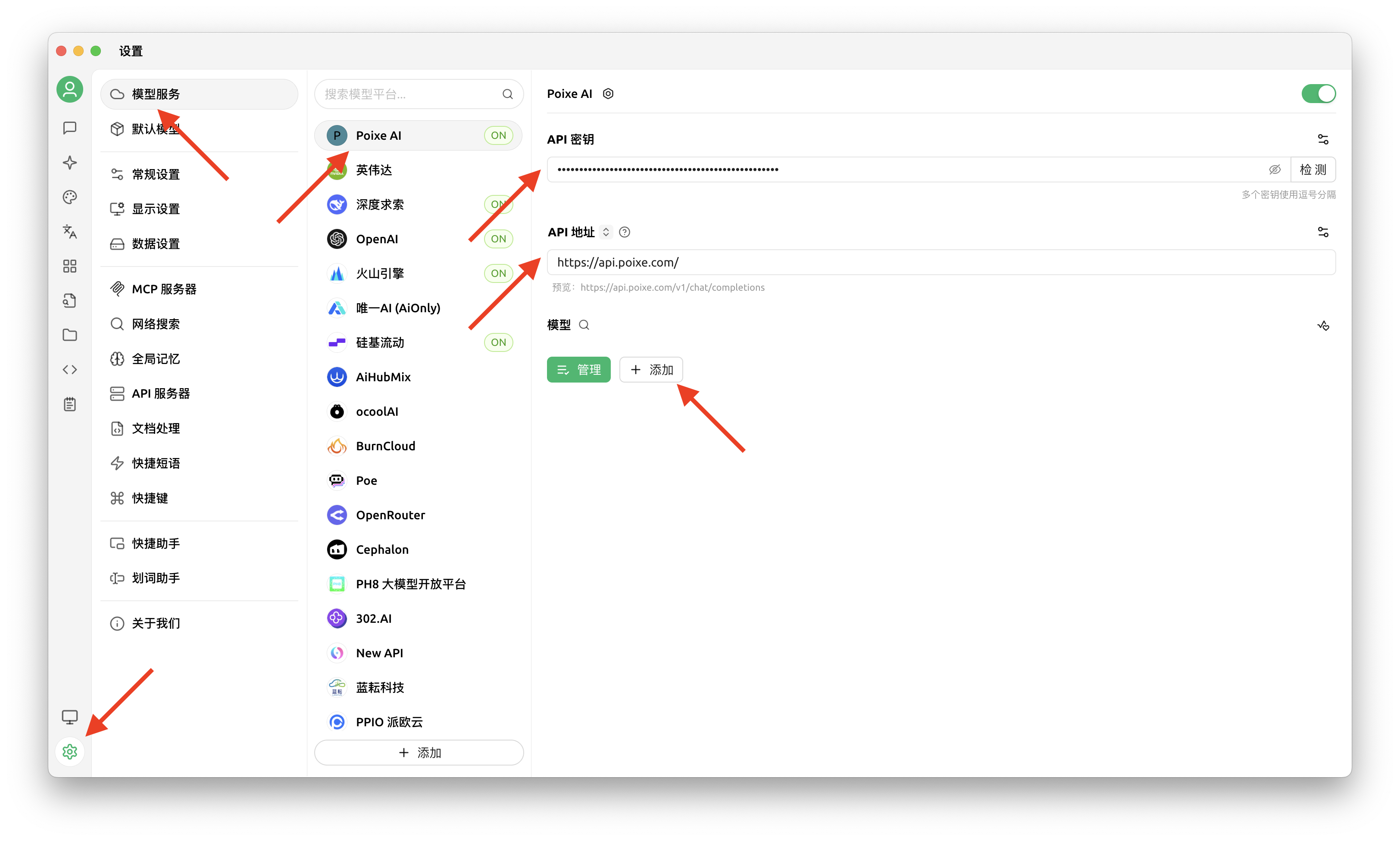 In Cherry Studio, click the gear icon in the left sidebar to open Settings, then go to "Model Service" (模型服务).
On the Model Service page, click "+ Add" (添加) at the bottom to add a provider, and give it a name you can recognize at a glance (for example, Poixe).
For "Provider Type" (提供商类型), we recommend choosing **OpenAI** first (the most universal option, compatible with most chat scenarios).
In the provider you just added, fill in:
* API Key (API 密钥): Enter your Poixe API Key.
* API URL (API 地址): Enter the Poixe Base URL.
**Note:** The "Check" (检测) button to the right of the API Key only succeeds after you add a model, because the check needs a model to test against.
On the provider configuration page, click "+ Add" (添加) at the bottom and manually add the model names you want to use (for example, `gpt-4o` / `gpt-5.2` / `gemini-2.5-pro`; refer to the Poixe model list for the exact names).
Not sure about a model name? The safest option is to check Poixe's model list.
Return to the chat page, switch to the Poixe model you just added in the model dropdown, and you can start chatting.
## Troubleshooting
* **Connection failed**: First check that your API Key is correct and your Base URL is entered correctly.
This documentation is built and hosted on [Mintlify](https://mintlify.com), a developer documentation platform.
In Cherry Studio, click the gear icon in the left sidebar to open Settings, then go to "Model Service" (模型服务).
On the Model Service page, click "+ Add" (添加) at the bottom to add a provider, and give it a name you can recognize at a glance (for example, Poixe).
For "Provider Type" (提供商类型), we recommend choosing **OpenAI** first (the most universal option, compatible with most chat scenarios).
In the provider you just added, fill in:
* API Key (API 密钥): Enter your Poixe API Key.
* API URL (API 地址): Enter the Poixe Base URL.
**Note:** The "Check" (检测) button to the right of the API Key only succeeds after you add a model, because the check needs a model to test against.
On the provider configuration page, click "+ Add" (添加) at the bottom and manually add the model names you want to use (for example, `gpt-4o` / `gpt-5.2` / `gemini-2.5-pro`; refer to the Poixe model list for the exact names).
Not sure about a model name? The safest option is to check Poixe's model list.
Return to the chat page, switch to the Poixe model you just added in the model dropdown, and you can start chatting.
## Troubleshooting
* **Connection failed**: First check that your API Key is correct and your Base URL is entered correctly.
This documentation is built and hosted on [Mintlify](https://mintlify.com), a developer documentation platform.